DevOps-版本控制系统-GitLab部署

image-20210327223917830

1 使⽤RPM包部署

这⾥使⽤的系统是CentOS8, 清华源:mirrors.tuna.tsinghua.edu.cn/gitlab-ce/

下载软件包

1
wget https://mirrors.tuna.tsinghua.edu.cn/gitlab-ce/yum/el8/gitlab-ce-13.7.0-ce.0.el8.x86_64.rpm

安装

1
rpm -ivh gitlab-ce-13.7.0-ce.0.el8.x86_64.rpm

⽇志输出

1
2
3
4
5
6
7
8
9
10
11
12
13
14
15
16
17
18
19
20
21
22
23
24
25
26
27
28
29
30
31
32
33
34
35
36
37
38
39
40
41
42
43
44
45
warning: gitlab-ce-13.7.0-ce.0.el8.x86_64.rpm: Header V4 RSA/SHA256 Signature, 
key ID f27eab47: NOKEY
Verifying... ################################# [100%]
Preparing... ################################# [100%]
Updating / installing...
1:gitlab-ce-13.7.0-ce.0.el8 ################################# [100%]
It looks like GitLab has not been configured yet; skipping the upgrade script.

*. *.
*** ***
***** *****
.****** *******
******** ********
,,,,,,,,,***********,,,,,,,,,
,,,,,,,,,,,*********,,,,,,,,,,,
.,,,,,,,,,,,*******,,,,,,,,,,,,
,,,,,,,,,*****,,,,,,,,,.
,,,,,,,****,,,,,,
.,,,***,,,,
,*,.


_______ __ __ __
/ ____(_) /_/ / ____ _/ /_
/ / __/ / __/ / / __ `/ __ \
/ /_/ / / /_/ /___/ /_/ / /_/ /
\____/_/\__/_____/\__,_/_.___/


Thank you for installing GitLab!
GitLab was unable to detect a valid hostname for your instance.
Please configure a URL for your GitLab instance by setting `external_url`
configuration in /etc/gitlab/gitlab.rb file.
Then, you can start your GitLab instance by running the following command:
sudo gitlab-ctl reconfigure

For a comprehensive list of configuration options please see the Omnibus GitLab
readme
https://gitlab.com/gitlab-org/omnibus-gitlab/blob/master/README.md

Help us improve the installation experience, let us know how we did with a 1
minute survey:
https://gitlab.fra1.qualtrics.com/jfe/form/SV_6kVqZANThUQ1bZb?
installation=omnibus&release=13-7

2 配置

安装完成后可以发现以下信息,需要修改gitlab.rb配置⽂件。

GitLab was unable to detect a valid hostname for your instance. Please configure a URL for
your GitLab instance by setting external_url configuration in /etc/gitlab/gitlab.rb file. Then,
you can start your GitLab instance by running the following command: sudo gitlab-ctl
reconfigure

编辑 /etc/gitlab/gitlab.rb 可以看到默认的域名配置。如果是学习使⽤则可以继续使⽤该域名,不⽤再做其他配置。

1
external_url 'http://gitlab.example.com'

如果是需要修改该域名,则需要这样做:

1
2
3
4
## 修改gitlab.rb
external_url 'http://gitlab.devops.com'
## 重新配置
gitlab-ctl reconfigure

3 服务运⾏控制

1
2
3
4
5
6
7
8
## 启动服务
gitlab-ctl start
## 重启服务
gitlab-ctl restart
## 查看状态
gitlab-ctl status
## 停⽌
gitlab-ctl stop

4 访问测试

由于使⽤的是gitlab.devops.com 这个域名,需要在dns或者本地hosts中添加该解析记录。

1
2
vi /etc/hosts
192.168.1.200 gitlab.devops.com

浏览器访问http://gitlab.devops.com/ , 设置⽤户密码。默认⽤户root 。这⾥设置的密码是devops1234 。

能够正常进⼊⾸⻚即可,安装完成。

image-20210327224441204

5 默认端口修改

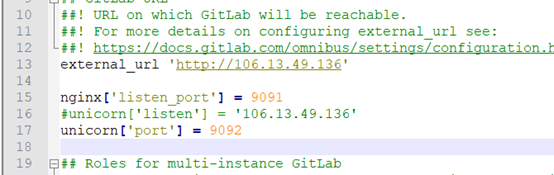
由于默认gitlab使用80端口,所以,我们需要修改gitlab的默认端口。

修改 /etc/gitlab/gitlab.rb 文件如下,然后执行重新配置,重启命令后完成。

1
2
3
gitlab-ctl reconfigure  //让配置生效,重新执行此命令时间也比较长

gitlab-ctl restart

端口要用9090以后的最好,否则不生效

默认情况下:unicorn会占用8080端口,nginx会占用80端口。改完之后,就可以通过nginx[‘listen_port’] 在浏览器进行访问了。

内部8080端口也不再被占用了。
在这里插入图片描述

这样修改了默认端口80后,在idea中获取代码时,要在路径后面加上修改的端口号才可以访问到代码

以上是按照gitlab的全过程。